Home Forge App
Be the first to reviewOn this page
Reviewed by
Ludis.app Team
Published
Apr 22, 2026
Updated
Apr 22, 2026
Home Forge is a mobile construction management tool built for people who work on large-scale building projects — towers, multi-phase sites, and complex structures. It runs on iOS and Android, sitting inside a package that also includes Tower Rush, a cartoon-style stacking game with a completely different visual identity. The combination makes for an unusual pairing, and understanding what you're actually getting before you download is worth a moment of your time.
App in Action
Inside the App
At its core, Home Forge is designed to keep construction teams organized. The main management interface — called Site Notes — uses a dark blue-gray color scheme with orange accents throughout: orange headings, orange navigation arrows, orange filter tab highlights, and an orange plus button for adding new entries. The overall contrast is strong, and the layout follows a clear hierarchy: a top header bar, a filter row beneath it, and a scrollable content list below that.
What the management side actually does
Notes inside the app are separated into categories — Materials, Tasks, and others accessible via the tab filter. When logging a material, you enter a name (such as Iron), a numeric quantity with a unit like kg, and a freeform notes field. Entries are timestamped automatically. A Builder Tips section offers guidance organized around six topics: safety first, materials list, pre-handover checklist, planning by day or phase, organizing notes per site or job, and quick on-site notes. Each tip carries a short practical description — for instance, the materials tip reads: "Log materials and quantities as you go. It helps with reorders and handover." Deleting a note requires a long press, which a dismissible in-app banner explains on first use.
Where Tower Rush fits in
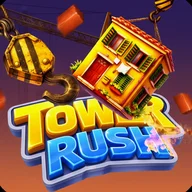
The app bundle includes Tower Rush, a 3D cartoon stacking game rendered in bright yellows, oranges, reds, and blues against a sunlit sky backdrop. Buildings of different styles — brick structures with round windows, yellow houses with blue roofs, red wooden frames — are lifted by yellow-and-black striped crane hooks and stacked vertically into growing towers. Multiplier badges (×5, ×10, ×20) appear on screen as structures accumulate. There's a direct visual echo between the two halves of this package: the construction crane that lifts cartoon buildings in Tower Rush is the same tool you're mentally reaching for when you log iron stocks and track handover checklists in the management app. One is whimsical and fast-paced; the other is methodical. Both are built around the idea of stacking things carefully so nothing collapses.
Accessibility and usability notes
- The management interface uses good contrast — orange on dark — but the game side relies heavily on color distinction between red and green building elements, which may create issues for color-blind users.
- Several touch targets are noted as small: the plus button in the top-right corner, the X on the notification banner, and the filter tabs, which sit close together.
- Long press is required for note deletion — a gesture that may be difficult for users with motor impairments.
- Screen reader support for the game's spatial building-stack mechanics is not described in the documentation.
The combination of a dark, structured management tool and a vivid cartoon game inside one install is genuinely disorienting. The two halves share a construction theme but almost nothing else — different color palettes, different interaction patterns, different purposes entirely. Users looking purely for a site management utility may find the Tower Rush component an unwelcome distraction, and vice versa.
App Specifications
| Developer | KRAVS |
| Platform | iOS and Android |
| Last Updated | Mar 26, 2026 |
| App Category | Construction Management |
| Note Filter Tabs | All, Materials, Tasks |
| Material Entry Fields | Material name, quantity with unit (kg), and free-text notes |
| Delete Gesture | Long press on a site note to delete it |
| Built-in Tips | 6 builder tips: Safety, Materials list, Pre-handover checklist, Day/phase planning, Notes per site or job, Quick site notes |
App Help & Tips
How do I log materials like iron or concrete in Home Forge?
How do I delete a site note I no longer need?
Can I manage more than one construction site or tower at the same time?
What kind of guidance does the Builder Tips section offer?
How can I filter and review my site notes by category?
Reviews
Log in to write a review